
Windows Personal Computer Tips for Financial Planners and DIY Investors |
| Site Information (is listed below. The financial planning software modules for sale are on the right-side column) Confused? It Makes More Sense if You Start at the Home Page How to Buy Investment Software Financial Planning Software Support Financial Planner Software Updates Site Information, Ordering Security, Privacy, FAQs Questions about Personal Finance Software? Call (707) 996-9664 or Send E-mail to support@toolsformoney.com Free Downloads and Money Tools Free Sample Comprehensive Financial Plans Free Money Software Downloads, Tutorials, Primers, Freebies, Investing Tips, and Other Resources List of Free Financial Planning Software Demos Selected Links to Other Relevant Money Websites
|
First, you can buy a list of ~700+ IP address from non-English speaking countries on the other side of the world that you can input into your website's Control Panel's IP Blocker to block them them accessing your website - to prevent spies, hackers, and all that for $5
Next, after much research, trial and error, there is an awesome simple, sane, and easy way to do e-mail. The list of failures with Outlook and geemale is just way too long to accept. The #1 problem with Outlook, is that it just sometimes just does not send nor get mail - their slow server only works when it wants to. Outlook forces you to have your reply to address be Outlook, and not what you want. Then they can't even get mundane things like fonts to work right. The status text is rarely correct and the progress bar doesn't even work, so you can't tell if it's even working or not. Then the program magically closes on its own, but the task still runs. Then both only allow you to store e-mails on their servers. This means you they have the control (to read your e-mails whenever they want to), you do not, and you cannot even back up your e-mails. So if anything at all happens where you can't login, then you're just totally screwed. They do this so they can read your e-mails, there's something for
government spies to read, and then determine what you want, so they can "serve you relevant ads." Sorry, but I do not want ads, spam, or news, when I'm doing my e-mail - so you are fired. Then when you travel, you'll get, "Sorry, but you're checking your e-mail from an IP address we're not used to seeing, so you can't login, and we're just going to totally fail you at the worst possible moment by denying access to EVERYTHING." So if you like sanity in your e-mail program, the control and security of only having your e-mail on your computer, be able to back it all up to another hard drive folder, CD or USB drive, etc. and so forth; then you probably really miss the old Outlook Express that only worked with Windows XP. They canned that in Windows 7, so you'd be forced to migrate to their 360 cloud - which costs around $100 a year. Then they whine that "Wow your e-mail account is growing too fast, you need to delete a few GBs and stop that" - even though YOU ARE PAYING for it. Then try to send business e-mails to your customers from either one, and you'll see that both of them have no clue about the needs of businesses. And BTW - mail chimp is useless too, so don't bother with that either. Both are "free," so they're only about what they want and makes them the most money, and they couldn't care less about what you want and need. So here's how to fire them both forever and use a great program similar to Outlook Express that will work on any version of Windows, it works, it's simple and easy, secure, no limitations, no more only having your e-mails on someone else's server, no more stupidity, no more failures, no more privacy violations just to serve you ads they think you want to see, it works regardless of who's Internet service you're using while travelling, you can back up just the last month's e-mails to your hard drive so they'll never be lost, and it's FREE, updated and supported: https://www.mozilla.org/en-US/thunderbird/ A tip that will make your life much better with notebook / laptops, is to spend $40 and get a wireless mouse. Why anyone chooses to fumble with those stupid little
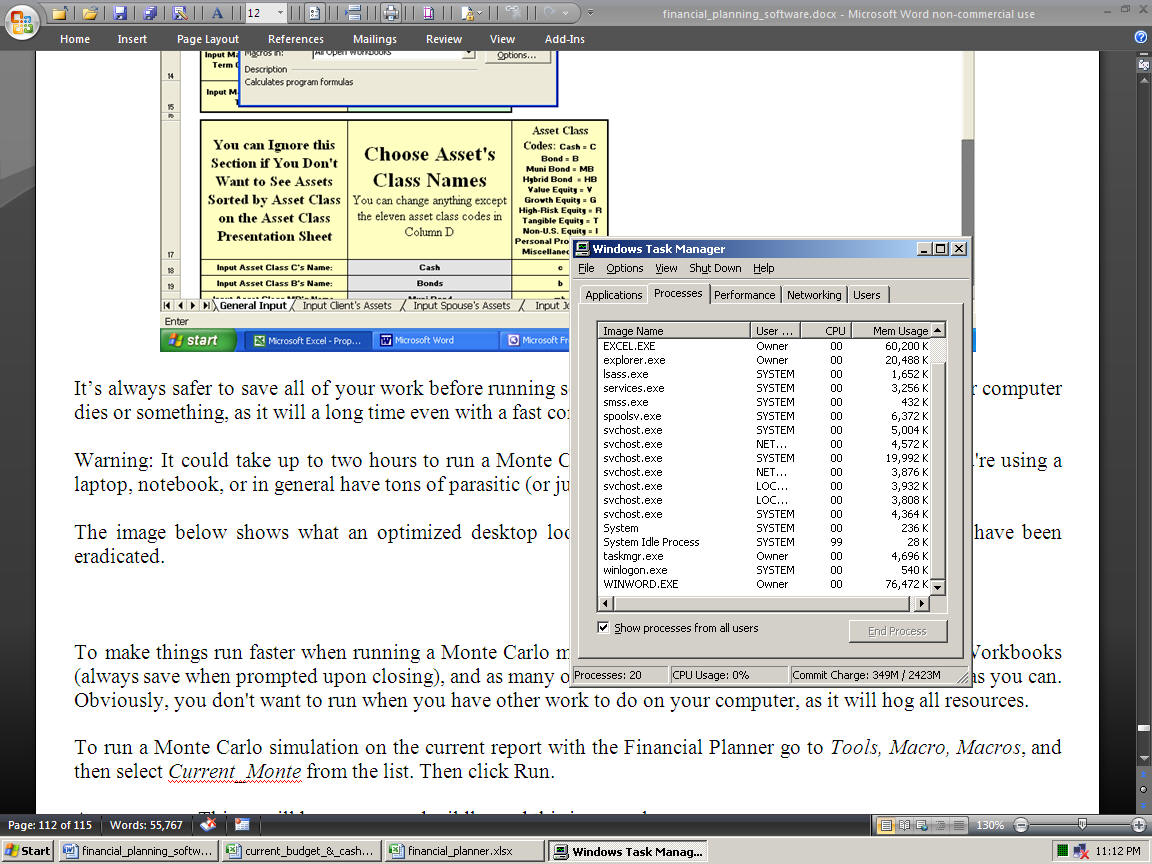
pads and mouse buttons makes zero sense. Recommended mouse: MS Wireless Mouse 5000. There is also no law saying that you have to use the little touch pad mouse in the middle of the notebook / laptop computers. Control + will make things bigger in Internet Exporler, and *- smaller. Then get a real keyboard for $40 and plug it in too. Customize a piece of cardboard to put under it, so it won't press the tiny laptop keys. Recommended keyboard: MS Natural Ergonomic Keyboard 4000 or higher. Here's the difference between a notebook and a laptop: Laptops are actual computers, so they're upgradeable. A notebook computer usually does not have a built-in DVD / CD Drive. The typical screen size is between 12 to 14 inches. A notebook's keyboard is barely functional compared to a laptop. The power consumption of the notebook is usually lower. Laptops can handle additional features, so they perform more functions. They usually have wider screens with much higher resolution - some over 17." Graphics are usually better and faster. They usually have a built-in DVD-ROM drive and/or a DVD-RW. The keyboard is also larger and fully-functional. The battery life of a laptop is also lower than the notebook's, unless you pay up for a good one. Audio and speakers are usually better on a laptop. Laptops usually have much larger and faster hard drives. The laptop can replace a desktop computer, but a notebook cannot. Unless you have a really good Mom & Pop computer store near you, the best place to buy laptops and notebooks are Best Buy. They have Asus, and most all other main, lines and can order computers not in their stores. After that, the usual office supply stores are the place to go. They don't repair screens on the PCS they sell though, which is a fail. Lenovo used to be made by IBM, but was bought out by the Chinese, so.... XP tips: Unfortunately, this is the age of the Internet. Most large companies do everything they can to drive traffic to their website, track what you're doing, collect and sell your personal information and what you do with your computer / printers / digital cameras, and put you on spam (junk Mail) lists. These, and other, useless programs that do things you don't want them to are known as crapware, malware, or parasite programs. To see how much parasitic crapware your computer is running, press these three keys all at the same time only once: Control, Alt, and Delete. Click the Processes tab. The amount of processes running should not be more than a couple dozen (or 30 on a notebook). Anything more, then you have parasite programs (the computer manufacturer is forcing your computer to run that provide no value). If you have kids that game online / use social sites, then there's probably dozens of crapware (and Spyware) programs running. Below is an image of an XP computer, that has been meticulously optimized so that NO parasite ever run: As you can see, there are only 21 processes running. On computers where none of this optimization work has been done, it's normal to see fifty processes running. This means that half of the time, your computer is thinking about "totally useless crap," and that's why it's sooooooo slooooow. On laptops, it's normal to see 50 processes. That's why they're even sloooooooooooooower. These programs don't do anything you want them to do, so all they do is make your computer run slower, crash, collect About you / steal your privacy (spyware), and drive you to their useless websites. The next thing that's making your computer slow are Scheduled Tasks. So go there and disable ones that are useless. What to do about this in XP: Go to Start, Run, and type in "msconfig." A program will run. All of these parasitic programs start up because MSCONFIG tells them to. You can manually turn them off in both the Services and Startup tabs. You cannot just go and turn these things off without knowing what you're doing, or most everything thing will stop working. Don't uncheck everything in Services, but you can probably set everything in Startup to not start up, and things will be much better. Try it and see, you can always reboot and set everything back to starting up. Then the thing to do is to use a search engine to read about each process, then decide whether or not you want to try turning them off. We're so anal about this that we even turn off the Morningstar parasite in the Startup tab that's put there whenever it's installed monthly. When you do this, be prepared to spend some time at it. You'll also need to keep track of what you're doing, so use the Print Screen key and then paste this into a Word docx, so you can see what you did. When you mess up, don't worry, just turn that process back on and reboot. When you've eradicated as many parasites as possible, your computer will run Much faster and better. Then when you're reading about the process, write down all of the program names and folder locations. Then you can use Control Panel / Add or Remove Programs to deinstall them using Control Panel / Add or Remove Programs, if they're bad enough. Also, a tip is to use the Task Manager to set CTFMON's priority to low, then uncheck the CPU 0 box, so it won't run on the main CPU. This is a useless program if you're not "disabled," so it was another MS blunder to make it run and hog resources all the time. There's nothing magic or hidden about this (like there is with index.dat and desktop.ini), so it's just a matter of doing the work needed to get rid of everything useless, while not harming anything that will make things not work right. You just have to invest the time experimenting. It's well worth it. When you have things the way you want them, do more screen prints into a Word docx and save it so you can always go back if needed. Some parasites will just grow back on their own, so then you'll need to get to the bottom of that too. Because the OEM vendor has modified Windows, you can't eradicate most of them. These concepts are the same with later versions of Windows, but how to turn processes off are different. Large computer manufacturing companies customize their motherboards and Windows to do all kinds of worthless things - like drive Internet traffic to their, and their "partners" websites. So you'll need to be careful when you eradicate their crapware. This is annoying, but even worse, it makes the computer slow, makes it incompatible with other software you may want to install, and makes it crash. Anyone familiar with AOL, EarthLink, Norton / Symantec, Adobe, the phone company's DSL CD, and similar software knows about these programs taking over your computer. Nothing good ever comes of this. Then there's the phone company - especially Comcast. The first thing to do is to NEVER EVER use their CD to install anything when the phone install people come out to hook up your Internet. This is one of the biggest scams and reasons for a very slow computer. The amount of crapware that CD installs is so unbelievable it should be illegal. Then it's a major effort to get eradicate it all too. So if the installer says you have to use it to be installed, then use an old spare computer that you don't use every day. Then DO NOT put that CD in any computer of value. Once their crapware is installed one on computer, then the Internet will function, and you can just unplug the cable and put it into any computer (or use a wireless router), and it will work just fine. We were forced into doing this, and their crapware was so insidious that the hard drive had to be taken out and all of their folders manually deleted using another computer, because you can't even deinstall their crapware using any normal method. So just say no to putting the phone company's CD into any PC you care about (so break out your ancient computer from the basement if they force you to load their CD onto your PC). Once your PC is infected with phone company crapware, it's going to run half as fast forever unless and until you deinstall everything, then manually take the hard drive out and hook it up to another computer using a magic gadget that allows you to use Win Explorer to delete all of their folders everywhere, which is an ordeal. Win8 has so many programs running, that it requires you to use an i3 or i7 chip with at least 4Gb of RAM. Because of the unbelievable amount of power (with eight brains), most new computers will run faster than greased lightning, even with all of the parasites. So the above rant of needing to needing to do a lot of tedious work to eradicate them is not needed as much when you have a new computer with eight brains, each able to use half to a gig of memory each. But your computer will still thank you by eradicating everything to do with Adobe's PDF viewer (deinstall everything except their Flash Player software). Foxit Software: Out of the many PDF makers, printers, editors, and organizers I've have to deal with over the decades, this is by far the best. Your computer will thank you big time for eradicating as much as possible from Adobe from your PC Here's what to do if you want a real computer to work really good: Go to a good local PC shop that puts PCs together from scratch. Tell them you want a genuine unmodified
Asus motherboard, with a genuine Intel CPU, and get a brand new original Microsoft Windows installation CD. Tell them, if possible, to not use any hardware from Asia or India - everything needs to be made in the U.S. Avoid everything made in China like the plague (e.g., Lenovo). Then when there's a problem, you can call them, or just drive the PC to the shop, and/or you can call Microsoft. This way: • Your computer will rarely crash or do stupid things to you all day (compared to the name brands with an altered OEM version of Windows). • You'll be able to upgrade / update Windows without having to take it back to the store (if you can). Because these firms modify Windows, you can't just buy and install the latest version of Windows because it doesn't have all of their modifications. It may run, but it will crash constantly. You sometimes can't install clean Windows on an OEM computer (HP, Dell, Compaq, Gateway, etc.) because they modified their mother boards to only run on their modified version of Windows. You can only run their version of Windows. This is the root of millions of problems that you're then stuck with forever. • The hard drive folders won't be hidden. If you just buy a PC from Best Buy, then don't be surprised when most all of the usual folders are just hidden (and everything is just stupid). • You'll be able update Windows and other programs via Microsoft's free update site. • Your computer will be much faster (because it's not running tons of useless crapware parasite programs in the background). • When it breaks, there will be no more having to pack it up, spending a fortune sending it in the mail, and waiting weeks to get it back. The service will be better (because you can just drive it over to a real human in your community). Then you can wait for it to be repaired and may have it back the same day. Tip about "Geek Squads:" These techs are much too young and clueless. Dealing with a Mom and Pop computer store, where Mom and/or Pop is at least 40 years old, is infinitely better. • You won't get the constant parade of "patches" that you need to install to keep your computer running. • The PC will still cost less, even after the local sales tax. • There won't be unwanted icons and favorites all over the place. • You'll be putting money into your community instead. Most of the above was for much older computers. Today, you can get a Windows 8.x computer (desktop or laptop) that is so powerful that it will deal with all of the parasitic programs and still have so much horsepower left that you'll never use it all. So spend up to get an Intel i7 processor with at least 4Gb of memory, and you'll never have to deal with slow computers again. Miscellaneous PC Tips and Info Before you buy any hardware or software, make sure it's not made in Asia or India (e.g., Lenovo). There's too many problems with all that, because their #1 goal is usually cost-cutting. #2 is firmware that sends information back to China (generic country-to-country spying). You want a real American computer where the #1 goal is quality. The price differences are minor these days, so there's a substantial difference between a real computer and a bleep computer for under $100. Get an Intel i7 processor with 8Gb of memory, and your days of having to wait for your computer to think will be over forever. Back to increasing PC performance: This is a little-known Windows trick, that will speed up your computer. Press control-alt-delete to get the Task Manager to open. When you right click on a process (under the Processes tab), you'll see that you can set CPU priorities (and which CPU that process uses). So when you're working with a program that's "slow" then raise its priority. Also, lower the priority of other (useless) programs too (like ctfmon in XP. You can also make it so cftmon will only use CPU #1 using the Affinity tab). Stop most all tasks in the Task Manager: You should consider turning off the "Send Error Report" function. It is very annoying, may break Internet Explorer, and is prone to spyware viruses that let bad people into your PC when it's sending the error report. This happened to our Compaq Presario and it sat and downloaded 200Mb of stuff before we realized it wasn't sending an error report and killed it. So it's best to just turn it off. Go to Control Panel, System Properties, and at the bottom there's a button for Error Reporting, or use Control Panel in Wins 8.x to get to the Task Manager. About your computer turning itself off and/or rebooting at random: This is usually a Windows Update failure. It's automatically downloading updates at the times you set (under Change Setting, and yes, this is also why your computer wakes up from standby for no apparent reason - because you have that selected). Then when they require a reboot, it just waits a day or so for you to get a 'arountuit. Then if you don't, it does it for you - always at the worst possible times, of course. To stop this failure: Change the settings of your Windows Updater to not automatically check for updates. Under Important Updates, select Never check for updates. Then you'll need to remember to check for updates manually at least once per week. The cure for this failure would be to have it ask you before just rebooting your system whenever it feels like it, but again and as usual, nooooooooooo,
can't have any of that. About your computer failing at Windows Update: This is usually because you've manually turn off processes that start when your computer boots up. To cure it, go to Control Panel, Administrative Tools, System Configuration, then and select Normal Startup, so it loads everything. Then updating will work again. If you're annoyed because Standby / Sleep mode doesn't work right, because it comes out of Standby for no reason, or because the mouse moved, then the problem is your (Logitech) mouse. Get a Microsoft comfort mouse (4000) and all of your mouse and standby annoyances will go away (including the problem where the mouse jumps all over the screen for no reason). It worked perfectly from the get go with no setup or driver install. In general, ALWAYS use MS mice and keyboards whenever you can. They're no more expensive than "cool" mice and keyboards, and tons of annoying problem (like standby not working) usually magically go away forever. If you're a web publisher, then using Microsoft's Expression Web, which is FREE, is by far the best way to go. Download it from here. There's zero reason to pay up for crapware like DreamWeaver when you can use EW. It's the same thing as FrontPage 2003, as they just made it much better, and then changed the name. On all of our keyboards, you'll find several keys have been removed. They are rarely used, and only serve as targets for making mistakes. For example, we popped out all of the following keys: Caps lock, Number lock, the Start menu key, Break, Scroll, F1, and the two keys next to the Print Screen key. If you gently pop them out, then they easily pop right back in. Popping out these useless keys will greatly improve your typing speed and efficiency. If you need to use them temporarily, you can just insert a pencil or pen tip. You'll be amazed at how your life will improve without these keys. They're nothing but useless Whac-a-mole targets that want to go, "Press me by mistake with your warp ten butterfingers so you can screw up and waste tons of time fixing your mistakes, especially the Cap Lock key, yeah hit me by mistake 100 times a day so you'll have to send an hour retyping everything." NO! ALL useless keys can easily just pop out of the keyboard, and all of those huge problems are solved once and for all. First rule of keyboards: Keep all liquids away from them! Even the spill-resistant keyboards will need replaced is one drop of beer lands on it. If you hate pop-ups (e.g., Netflix) that were supposed to go away when you turned on your pop-up blocker, it's because of a newfangled thing called "add-ons." So you'll need to go Tools, Manage Add-ons, then disable Shockwave Flash Object. In general, disable all of them (accelerators and everything on all menus) until you get an error from a website you want saying you need one (be sure to disable everything
you can from Adobe). Also, then it won't take an eternity for your browser to open. Hulu and videos will need Shockwave Flash Object and Pandora will need XML DOM Doc to run though. Here's a huge PC tip when dealing with software vendors like Morningstar or Investor's FastTrack: DO NOT EVER let them install and/or run their programs that lets them see what your computer is doing! Morningstar wants you to use Joinme.com, and IFT uses their own program. Just don't that, regardless of whom the vendor is. The main problem, after the obvious security breach, is that your computer will "break" if and when you deinstall it. So just never ever do that ever. If (after you've turned off automatic updating as it says above) your computer magically turns itself off for no reason, then most likely it's your power supply going bad. So if you like your computer, and don't like this, then take it to your local PC repair store and have it replaced with a power supply that's one notch better than original. Always use a good power surge strip for your PC and monitor. Even better is using even the cheapest battery backup unit. Then plug power strip surge protectors into the battery backup so you'll have two in series. We've had dozens of friends lose their PCs and years of work over the last three decades all because they were too lame to use real power strips, UPS, and/or do backups. All it takes is for the power company to hiccup, or have lightning strike anywhere near your power lines, and you're toast all because you were too lame to buy a $10 power surge protector strip (and do monthly backups). We've never once had this problem and have been hit by lightning and have had the power company's screw ups destroy many other gadgets. So with everything you care about, always use two in series (plug one into the one that plugs into the wall socket). You can get the Microsoft Office 2016 Home and Student suite that has the latest Excel, Word, and PowerPoint for ~$150. You can find this at most all office supply stores (and most computer stores, Best Buy, sometimes Target, etc.). If you're still using Excel or Word '03 then you're operating in the Stone Age with primitive and broken and extremely limited programs that crash, lock up, and barely function, and really really need to upgrade ASAP. Them "moving stuff around" via ribbons is annoying, but well worth the learning curve. In general, Samsung has the best monitors. Acer monitors are so stupid that they think when you put your computer into standby, there's a screen that displays saying that you unplugged your monitor cable. If after getting a wide screen monitor, your images are too stretched horizontally, what you'll need to do is use the monitor's internal setup deal and let it automatically set it up under the Size settings. Everyone says this is fixed by changing the resolution via Control Panel / Display, but that doesn't do anything. It's an aspect ratio thing, and Windows is clueless about that. Tips for money advisers working with and saving client files can be found
here. You should make CD (or at least USB flash drive) backups of all of your work at least on a monthly basis, and store the CD in a safe location, but not where your computer is
(because if there's a fire, then you'll lose everything in that building). USB drives are okay, but not safe totally because they are vulnerable to neutrinos and EMP, eventually wear out, all you have to do is drop it and it may break, and are in general, much too flakey. Once a CD is made and stored safely, there's nothing a magnetic / electrical spike (or sunspot / solar flare / gamma ray burst) can do to harm it. It's critical to back up your data, but not programs. At any time, your hard drive could crash, there could be a fire, flood, burglary, power surge, or any number of things that would make the data on your hard drive irretrievable. Get one of those 128Gb USB drives, and use that as a weekly backup (again don't keep the drive in the same physical location as your computer). Then do a real CD backup at least monthly, and rotate the CDs between your bank safe deposit box and other secure locations (so if you go home one day and there's nothing but a meteor crater, you won't lose decades of work). Note that USB / Flash / Thumb drives will all eventually "break." So if you think it's safe to use them as a backup device, you are mistaken. If you let one site for years, it probably will just stop working. Then never format a flash drive as that will break it. Also, when you insert it, and you get the black pop-up saying "There is a problem with this drive..." DO NOT do what it says! If you reformat it, then it will break and become useless. This is an MS failure. So just close that black dialog box and get on with your life. Also, if it appears to stop working when you insert it, for no reason, then
insert it into a different USB part, and then it usually just magically starts working again. Then SanDisk thumb drives seem to be the most reliable. You should also create a new system restore point monthly. To do that (in XP), go to Start, All Programs, Accessories, System Tools, System Restore, then ensure you click "Create a Restore Point," and not the other choice. Then when your computer dies, you may be able to restore in a few minutes. Try to keep your desktop box a few inches off of the floor to keep the dust down. Then use a vacuum to dust only the exterior air intake. Never try to use a vacuum for anything inside the box, as the static electricity will fry your motherboard and/or hard drive. Backslash �\� is a hard drive delimiter, and
slash �/� is an Internet delimiter. XP tip: If you don't like Adobe taking over your computer, and sucking up your bandwidth by updating constantly updating (or who knows what it's really doing when it goes to their websites a hundred times a day), then here's how to help stop all of that: Use Windows Explorer and find Adobe in the Program Files (probably under Adobe / Reader). Find the file AcroRd32.exe, and rename it to a text file (we rename it to "you suck.txt"). Click Yes to the Rename error box that follows. Then go to My Documents and find the Updater5 folder. Delete it (it will be recreated the next time you use Adobe). Also, all of the Adobe folders in your Documents & Setting were deleted. When you want to use the Adobe Reader, then rename the file back to AcroRd32.exe. This manual process will help stop tons of annoying things, and will give you more Internet bandwidth. About the annoying Microsoft Explorer thing where you click on a file name, then it highlights because it's stupid and think you want to rename the file. Just don't click on the file name. Only click directly on the file icon. This stops this annoying renaming function from starting up. Using desktop shortcut keys helps too. This makes it so you can open programs way faster using your keyboard, instead of hunting for the icons to double click on with the mouse, or single Clicking on the Task Bar. For example, go to your desktop. Find the Internet Explorer icon. Right click, and choose Properties. Now type the letter "I" in the Shortcut key: field. Close. Now when you press Control, Alt, and I all at the same time Internet Explorer opens. It's faster and easier once you get used to it. Great summaries of Microsoft shortcut keys are here How to keep the terms "uploading and downloading" straight: The Internet lives in a
cloud up in cyberspace. So when you move a file from where you are on Earth up to the cloud, it's uploading. When you transfer a file down to Earth from the cloud, then it's downloading. Beware of MS Office 2016! It will eat your e-mails and then there's no way to back anything up yet with Windows 8.1. You'll need to constantly babysit it, or all kinds of bad things will happen you don't want. Then it's cloud-based, so if you delete your e-mails off of their cloud, it will also vanish from your hard drive Outlook program! Etc. and so forth. Not a day goes by when I'm not saying this about their cloud-based Outlook 2013:
WTF POS!!! The solution is to use two computers. Use the new 8.x PC for your "fun" Internet usage. Then use a Windows 7 PC for work and e-mailing. Then you can perform manual backups of Outlook Express dbx files to CD or USB drive. Then your e-mails will not be on anyone's insecure, flakey, and WTF POS cloud, and you will always have backups. Basically the old MS Outlook Express program is worth it's weight in diamonds, because you can get it route through ISPs like Gmail (so it will catch the spam before downloading into your hard drive). MS made Outlook Express incompatible with Outlook.com pretty much because they want you to use Windows 8.x (which is pretty much the biggest tech failure in history. I'm going to keep saying that until
they make a file finder as good as XP's Search Companion, you can tell it which
version of IE to open when you click on a link in an e-mail (instead of the
retarded tile version without even an X close box at the top right, and every program - Reader - has an X close box on the top right of it! How to close programs when this happens: Alt F4). What to do when this dialog box pops up: "MS Outlook Express wants to compact your e-mail folders, this make take an eternity." Click NO! If you click yes, it will take over your computer and you be stuck not being able to do anything else for an hour (exaggeration). If you click yes, then decide to cancel after you realize it will lock up your computer for an hour (or you kill it with the Task Manager), then it will eat your e-mail folders (the dbx files, and this is why you should find them and back them all up at least monthly). Wait until you won't use the PC for an hour, then go into Outlook and then manually compact all of your folders. If you've had it with spam, here's what to do. You have to delete your e-mail address so all new e-mails sent to it will get a failed mail e-mail back. If you just try to turn up your spam blocker, then too many real e-mails will be blocked. Flagging e-mails as spam doesn't work, because they just use a different domain name daily. After you've deleted the old address and made a new one, you'll have to manually tell people about the new one. Do it one at a time over a month. Then if you start getting tons of spam all of sudden you can narrow down who's doing it. Sometimes people have a virus on their computer that lives in their Outlook address book, self-replicates and automatically puts your e-mail address on a master spam list. Tell them to run an anti-spam / spyware program and to just get their computer fixed. After a few months, then reactivate the deleted e-mail address. Then wait a week and check it. If there' no new spam, then it's safe to use it again. If there's any new spam, then delete it again. Most of the time, you'll still be on spam lists even if the address has been deleted for years. Here a way to fix that: Get a G-mail-like account. As it says above, you cannot use Outlook.com for this. Go to your e-mail server control program, and set your regular e-mail to auto-forward to it. Then tell the mail server to leave e-mail on the server after Outlook downloads it. Then tell Outlook Express to only get e-mail from there. Most spam will automatically be blocked. Then when you get spam, you can go to your G-mail-like account and delete it as spam there (since you can't report spam from Outlook nor lame e-mail programs from your webmaster). You'll just have to remember to clean out your G-mail-like every so often so it won't clog up, and also to check the spam folder for non-spam. To keep your notebook battery alive the longest - try to never disconnect the power cord. As an experiment, the amount of time the battery lasted was plotted against how many times and how long the PC ran on battery. There was a correlation between how long it ran on battery and how long the battery life was. The more and longer and longer it ran on battery, the less time the battery lasted before it ran out (and then the sooner it permanently died). How to help make all of the stupid Windows open maximized: 1) Right click on the desktop icon, and go to Properties. under, Run, choose Maximized. 2) That probably didn't do anything, so open the program again. Then resize it to where you want it. Now hold the shift and control key down at the same time when you close. 3) If that didn't work either, then try doing the same thing, but this time open the programs from the Start menu. If that worked, but you still can't get it to work right from the desktop, then delete the desktop icon and make a new one from the Start menu (just drag it to the desktop). 4) If that didn't work, then the only other remedy is to edit the registry. You don't want to do that. How to make an e-mail distribution list in Outlook Express 1) Select Address Book from the Tools menu.
The "com" in dot com stands for "command." This is because the Internet started
when people were still using MS DOS.
About E-mail Servers Being Full This is rarely a problem these days, because of the massive free e-mail
server space most everyone has, but it still happens (especially if you checked the box "leave e-mail on the server" when setting up your e-mail). Every e-mail server has a limit as to how much a user can store. If you don't delete these e-mails from the actual server, it will eventually clog up. If you have everything (like MS Outlook) set up to store your e-mail on the server, then it will eventually fill up, you won't be able to get any new e-mail, and people
that sent them will receive failed mail notices. If your e-mailbox is full, then you won't be able to get new e-mail until you empty it on the server side. In other words, just emptying it on your PC won't make a difference, and you'll never know you're not receiving new e-mail. In general, the more money you pay your ISP (Internet Service Provider, like Comcast), the more server space you'll have for storing e-mail. Free e-mail (Hotmail, Yahoo, MSN,
etc.) will have less storage space (usually only around 10Mb). So first you should decide if you want your e-mail stored on your ISP's server. The only advantage is if you have a problem with your computer, and you lose your stored e-mail, then you can get it back because they have a copy of everything on their servers. That's the only advantage. The disadvantages are: • It will eventually clog and then you'll have to unclog it. This will keep happening forever. • It's easier for other people to read your e-mail when it's sitting on someone else's server. • It makes it easier for viruses and spam bombs to find your e-mail address and spam you. If you're like most people, and choose to not store e-mail on your ISP's server, then here's how to stop it: For MS Outlook Express: Go through these menus: Tools, Accounts, Properties, Advanced, then make sure the "Leave a copy of messages on server" button, at the bottom under Delivery, is not checked. For other programs you'll have to hunt and peck until you find the same set of commands as above. You may have to do this too, in addition to doing it on your Outlook. |
Financial Planning Software Modules For Sale (are listed below) Financial Planning Software that's Fully-Integrated Goals-Only "Financial Planning Software" Retirement Planning Software Menu: Something for Everyone Comprehensive Asset Allocation Software Model Portfolio Allocations with Historical Returns Monthly-updated ETF and Mutual Fund Picks DIY Investment Portfolio Benchmarking Program Financial Planning Fact Finders for Financial Planners Gathering Data from Clients Investment Policy Statement Software (IPS) Life Insurance Calculator (AKA Capital Needs Analysis Software) Bond Calculators for Duration, Convexity, YTM, Accretion, and Amortization Investment Software for Comparing the 27 Most Popular Methods of Investing Rental Real Estate Investing Software Net Worth Calculator (Balance Sheet Maker) and 75-year Net Worth Projector Financial Seminar Covering Retirement Planning and Investment Management Sales Tools for Financial Adviser Marketing Personal Budget Software and 75-year Cash Flow Projector TVM Financial Tools and Financial Calculators Our Unique Financial Services Buy or Sell a Financial Planning Practice Miscellaneous Pages of Interest Primer Tutorial to Learn the Basics of Financial Planning Software About the Department of Labor's New Fiduciary Rules Using Asset Allocation to Manage Money Download Brokerage Data into Spreadsheets How to Integrate Financial Planning Software Modules to Share Data CRM and Portfolio Management Software About Efficient Frontier Portfolio Optimizers Calculating Your Investment Risk Tolerance |
© Copyright 1997 - 2018 Tools For Money, All Rights Reserved